What OneDrive Known Folder Move Actually Does
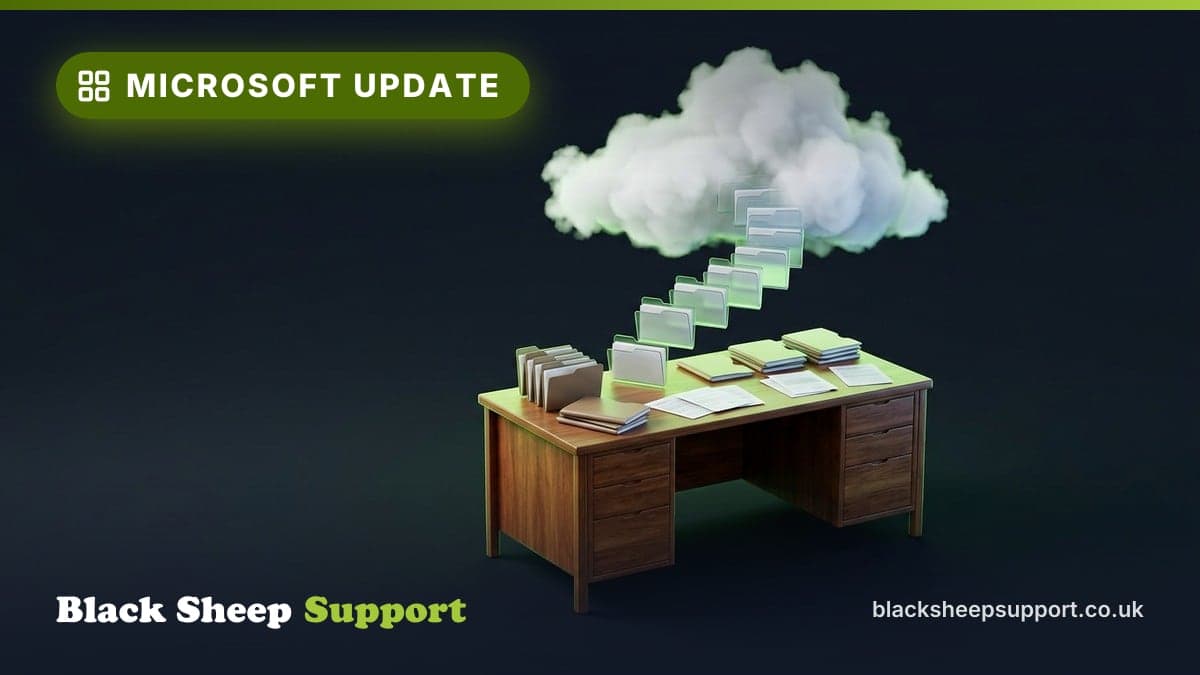
OneDrive Known Folder Move (KFM) syncs your Desktop, Documents, and Pictures folders to OneDrive. This means files in these locations are automatically copied to the cloud, so they are available across all devices linked to your OneDrive account. If you lose a laptop or have a hardware failure, your files are still safe in the cloud.
Why It Matters for UK SMEs
For UK small and medium-sized enterprises (SMEs), data security and accessibility are key. OneDrive KFM reduces the risk of data loss from hardware failures or accidental deletions. It also makes moving to new devices easier, as all your files are already in the cloud. This follows data protection best practices recommended by the National Cyber Security Centre (NCSC).
How to Set it Up
Setting Up OneDrive KFM Manually
- Open OneDrive Settings: Click the OneDrive cloud icon in your notification area. Select 'Settings'.
- Go to the Backup Tab: Navigate to the 'Backup' tab and click 'Manage backup'.
- Choose Folders to Sync: Select which of the Desktop, Documents, and Pictures folders you wish to sync.
- Start Backup: Click 'Start Backup' and let OneDrive handle the rest.
Automating with Intune or Group Policy
If you manage multiple devices, automate KFM through Microsoft Intune or Group Policy.
- Intune: Configure a policy for 'Known Folder Move' in the Intune admin center. Assign it to the relevant user groups.
- Group Policy: Use the OneDrive ADMX templates to configure a Group Policy Object (GPO) that enables KFM, ensuring consistency across devices.
A recurring pattern we observe is businesses initially hesitant to automate, missing out on the time-saving benefits and consistency that tools like Intune provide.
The Limits: Sync, Not Backup
OneDrive KFM syncs files. This means changes made to files locally are reflected in the cloud and vice versa. This is not a traditional backup, where older versions are retained indefinitely. For true backup solutions, consider integrating Microsoft 365 backup services.
What Changes
Before: Files are stored locally, vulnerable to loss if the device fails. Manual backups are sporadic and inconsistent.
After: Files are synced to OneDrive, accessible from any device. Data loss risk is significantly reduced, and remote workers can access files easily.
Common Mistakes We See
- Ignoring Sync Conflicts: If files are edited simultaneously on different devices, sync conflicts can occur. Regularly check for these and resolve them promptly.
- Assuming It's a Backup: Remember, this is a sync service, not a full backup solution. Important files should also be backed up separately.
- Not Using Automation Tools: Avoid the temptation to configure each device manually when tools like Intune can automate the process more reliably.
FAQ: OneDrive Known Folder Move
Q1: Can I use OneDrive KFM on a Mac?
Yes, OneDrive is available for macOS, but Known Folder Move is a Windows-specific feature. You can set up similar functionality manually on a Mac.
Q2: What happens if I delete a file from a synced folder?
Deleting a file from a synced folder removes it from both your device and OneDrive. It can be recovered from the OneDrive recycle bin within 30 days.
Q3: Does KFM support shared folders?
No, KFM only supports personal folders like Desktop and Documents. Shared folders should be managed separately.
Planning Your OneDrive KFM Rollout
Before implementing OneDrive Known Folder Move across your business, consider several practical points to ensure a smooth transition. Firstly, clear communication with your team is essential. Explain what KFM does, why it is being implemented, and what changes users will observe in their Desktop, Documents, and Pictures folders. This proactive approach helps manage expectations, reduces confusion, and minimises support queries during and after deployment.
Next, assess your network infrastructure. The initial sync of existing user data to OneDrive can consume significant internet bandwidth, especially for users with large volumes of data. For businesses with many users, consider a phased rollout or scheduling deployments outside of peak business hours to avoid network congestion and maintain operational efficiency.
Also, review your Microsoft 365 licensing to confirm adequate OneDrive storage quotas for all users. While OneDrive offers generous storage, heavy users might approach limits, which could disrupt syncing and lead to data loss if not addressed. Finally, identify any business-critical applications that store data directly within the Desktop or Documents folders. Test these applications thoroughly after KFM is enabled to ensure they continue to function correctly with files now residing in OneDrive-managed paths. Some legacy applications may have issues with non-local file paths or expect specific folder structures.
Ongoing Management and User Awareness
Once OneDrive Known Folder Move is active, regular checks and ongoing user education are important for continued effectiveness and to maximise its benefits. Encourage users to routinely check their OneDrive sync status, which is visible via the cloud icon in the system tray. This helps identify any paused syncs, errors, or persistent issues early, allowing for prompt resolution.
Monitor overall OneDrive storage usage across your organisation. Proactive monitoring allows you to address potential storage limit issues before they impact user productivity. If users are nearing their quota, discuss file management strategies, such as archiving older files, or review available storage options to prevent disruptions.
Educate your team on how OneDrive handles files, particularly the "Files On-Demand" feature. Explain that files may not always be stored locally on their device, which affects offline access. Users need to understand how to mark essential files for "Always keep on this device" if they require constant offline availability, especially when working remotely or in areas with unreliable internet.
Finally, remind users about OneDrive's version history capabilities. While KFM is a sync service and not a full backup, this feature can be invaluable for recovering previous iterations of a document, offering an additional layer of protection against accidental overwrites or minor data corruption without needing IT intervention for simple rollbacks.
How Black Sheep Support Helps
If you need help making sure your team’s data is secure and accessible
and we can discuss what you need.
Not ready to talk yet? Run our free IT Health Check to assess your business risk and security posture: 30 to 60 minutes with one of our engineers, or 15 to 20 minutes on your own, no commitment.
We also handle hardware, broadband, mobile and networking, not just security.
Want this handled for you? See Microsoft 365 support.
Based in Brighton or Hove? We are too: see IT support in Brighton.