For many UK SMEs, the onboarding process for new staff is a logistical hurdle. It often leads to unnecessary downtime, potential security vulnerabilities, and avoidable IT frustration. Historically, getting a new employee operational meant an IT administrator spending hours. This involved manually unboxing a laptop, installing Windows, patching software, and meticulously configuring security settings. In the current hybrid working environment, this "hands-on" approach is not just inefficient; it represents a significant bottleneck to business growth. Microsoft Intune Autopilot fundamentally alters this process, enabling genuine zero-touch deployment. Utilising cloud-native configuration, you can dispatch a factory-sealed laptop directly to a new hire’s home. Within minutes of them connecting to Wi-Fi, the device can be fully corporate-compliant, secure, and ready for work.
What Intune Autopilot actually means
Windows Autopilot is a collection of technologies used to set up and pre-configure new devices, getting them ready for productive use. Essentially, it transforms the "out-of-the-box" experience (OOBE) of a Windows PC into a bespoke corporate onboarding portal.
For a UK SME, the value proposition is clear: you move from a manual, high-touch IT operation to an automated, scalable service. When a device is registered with Autopilot, it "knows" it belongs to your organisation the moment it connects to the internet. It automatically joins your Microsoft Entra ID (formerly Azure AD) and enrols in Microsoft Intune for ongoing management. This removes the need for IT teams to physically handle hardware, which is a considerable advantage for businesses with remote or distributed workforces. It ensures devices are configured precisely to your specifications without an IT technician ever touching the physical machine.
Why it matters for UK SMEs
Beyond the technical novelty, Autopilot solves significant business problems that directly impact the bottom line of UK-based SMEs. The implications extend far beyond mere convenience.
Operational Efficiency and Scalability
Manual imaging—where an IT technician wipes a laptop and installs a custom image—is a relic of a less agile era. It is a slow process, prone to human error, and inherently difficult to scale. Each new hire can represent several hours of IT labour, encompassing everything from unboxing and OS installation to driver updates and application setup. This time is a direct cost to your business. Autopilot allows you to scale your headcount without proportionally scaling your IT department. Whether you are onboarding one person or fifty, the process remains identical, automated, and considerably faster. This frees up valuable IT resources to focus on strategic projects, such as optimising existing systems, exploring new cloud services, or developing internal applications, rather than repetitive administrative tasks. The quicker a new employee is productive, the sooner they contribute to your business, directly affecting your operational expenditure and growth trajectory. This efficiency also extends to device refreshes or replacements, where the same zero-touch principles apply, minimising disruption.
Strengthening Your Security Posture
In the UK, the ICO (Information Commissioner’s Office) holds businesses strictly accountable for the security of their data. A data breach carries not only financial penalties under GDPR but also significant reputational damage, which can be far more costly for an SME. Manual setup is often where security gaps creep in: forgotten patches, missed encryption settings, or lax password policies. Such inconsistencies create vulnerabilities that can be exploited by malicious actors. With Autopilot, security policies are applied before the user reaches the desktop. You ensure that critical measures such as BitLocker disk encryption, robust Windows Defender settings, and multi-factor authentication (MFA) are enforced from the very first second of device use. This consistent application of security policies significantly reduces your attack surface and mitigates the risk of human error, which is often the weakest link in any security chain. Devices are brought into a compliant state automatically, reducing the window of vulnerability.
Compliance and Cyber Essentials
For SMEs aiming for Cyber Essentials or Cyber Essentials Plus certification, Autopilot is a powerful ally. These certifications, backed by the NCSC (National Cyber Security Centre), mandate baseline security controls, particularly around device configuration and management. Autopilot guarantees that every device entering your network meets these requirements. Because the device is managed by Intune from the moment of activation, you have a verifiable audit trail. This demonstrates that all devices are compliant with your internal security policies and external regulatory obligations. For instance, the requirement for managed software updates, secure configuration, and firewalls are all inherently addressed. This consistency not only eases the path to initial certification but also simplifies ongoing compliance, providing peace of mind during audits. It means you can confidently demonstrate that your endpoint security is uniformly applied across your entire device fleet, a critical component of any robust cyber defence strategy.
How to implement zero-touch deployment, a practical walkthrough
Understanding the lifecycle of an Autopilot device helps demystify the process. It is a streamlined journey that begins before the hardware even reaches the employee’s desk. Successfully implementing this requires a methodical approach, encompassing both technical setup and procedural changes.
1. Initial Planning and Standardisation
Before any technical configuration, a clear strategy is essential. This involves defining what a "ready-to-work" device looks like for your organisation.
- Standardise Your Hardware: Autopilot performs best with a predictable hardware fleet. We strongly advise UK SMEs to standardise on a specific range of business-grade laptops, such as the Lenovo ThinkPad or Dell Latitude series. Consumer-grade hardware can sometimes introduce driver compatibility issues during the initial provisioning phase, which can complicate deployment and lead to unexpected delays. Consistent hardware simplifies troubleshooting and policy application.
- Define Your "Gold" Configuration: You need a clear vision of what your "standard" corporate laptop entails. Use Intune to define:
- Applications: Essential software like Microsoft 365 applications, Teams, and any specific CRM or ERP tools your business relies upon. These should be packaged for silent installation.
- Security Baselines: Mandatory disk encryption (BitLocker), firewall rules, antivirus settings (Windows Defender), and password complexity requirements, all configured to meet your security policy.
- Settings: Pre-configured Wi-Fi profiles, VPN configurations, and browser settings, ensuring a consistent user environment from the moment they log in. This minimises user setup time and potential errors.
2. Device Registration
This is the initial handshake between your new hardware and your Microsoft 365 tenant. It is the crucial step that tells Autopilot this device belongs to your organisation.
- Vendor Coordination: The most efficient method involves your hardware vendor or IT partner uploading the device’s unique hardware ID (hash) into your Microsoft 365 tenant. This typically happens as part of the procurement process, often directly from the OEM (Original Equipment Manufacturer) or a certified reseller. This registration means the device is "yours" in the cloud before it even leaves the warehouse. It’s worth noting that not all vendors offer this service, so confirming this capability upfront is crucial to achieving true zero-touch.
- Manual Registration (if necessary): In cases where vendor registration isn't possible, devices can be manually registered by an IT administrator once they are in your possession. This involves running a PowerShell script on each device to extract its hardware hash and then uploading it to your Intune portal. While this slightly reduces the "zero-touch" aspect for the IT team, it still enables the automated configuration for the end-user.
3. Intune Configuration: Deployment Profiles and Policies
With devices registered, the next step is to tell them precisely what to do and how to behave within your corporate environment. This is where the customisation happens.
- Create Deployment Profiles: You define "Deployment Profiles" within Microsoft Intune. These profiles dictate the user experience during the Out-of-Box Experience (OOBE), for example, hiding privacy settings, End User Licence Agreement (EULA) screens, or local account creation options, and assigning devices to specific user groups. This ensures a consistent, streamlined setup for every user.
- Apply Policies: Beyond the basic setup, Intune allows you to deploy a comprehensive suite of policies:
- Compliance Policies: To ensure devices meet your security standards, such as requiring BitLocker, specific OS versions, or antivirus definitions to be up-to-date. Non-compliant devices can be automatically restricted from accessing corporate resources.
- Configuration Profiles: For granular control over operating system settings, device restrictions (e.g., preventing access to control panel items), and feature updates. This maintains consistency and security across your device fleet.
- Application Deployment: Silently install required applications, ensuring the user has everything they need from day one without manual intervention or user interaction. This can include anything from productivity suites to bespoke line-of-business applications.
4. Shipping and User Experience
This is where the zero-touch aspect becomes tangible for the new employee. The physical journey of the device is entirely separate from its configuration.
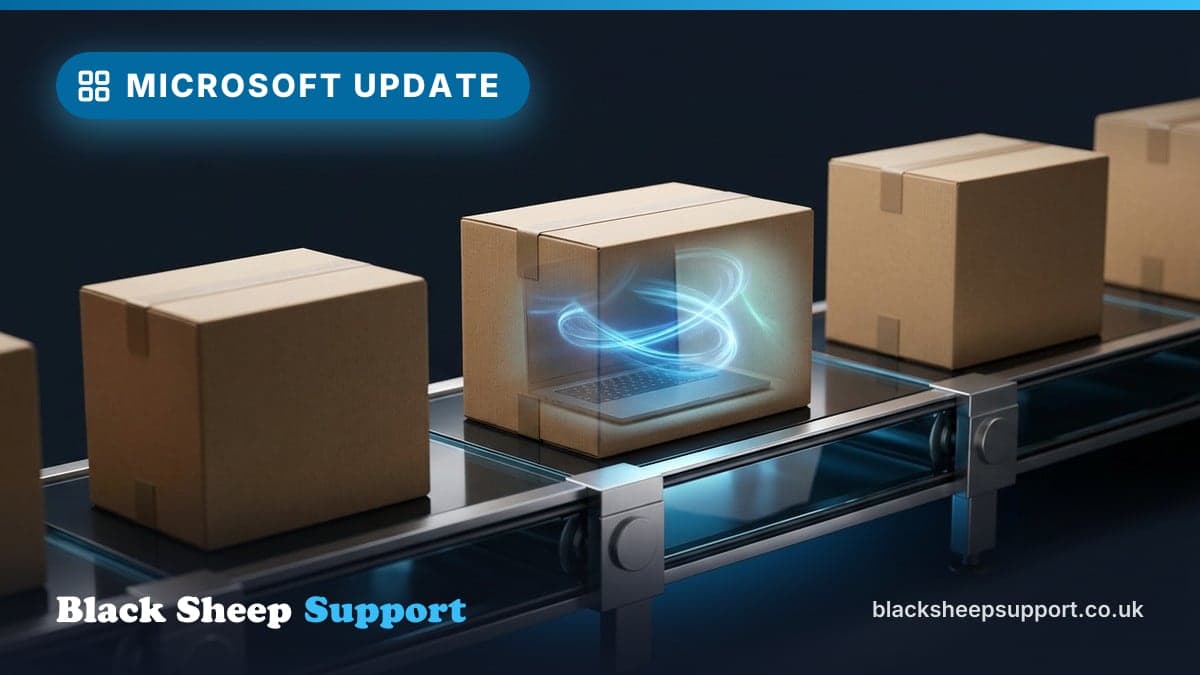
- Direct Shipping: The factory-sealed device is sent directly from the supplier to the new employee’s home or office. No IT intervention is required to prepare the machine. This dramatically reduces logistics and handling costs.
- First Boot: The employee opens the box, connects the device to their home Wi-Fi, and signs in with their corporate email address and password. The Autopilot process then takes over, guided by the profiles and policies you configured.
- Automated Provisioning: Autopilot automatically downloads your company applications, applies all defined security policies, and configures the operating system. The user is presented with a fully prepared workspace, often without needing to interact with any complex setup screens beyond their initial login.
Experience Signal: We recently onboarded a 40-user London accountancy firm. Their previous manual provisioning process for new devices took their IT team an average of three hours per machine, not including software installation. By implementing Autopilot, we reduced this to a user self-service task, saving them significant operational expenditure and ensuring every device was consistently secured with BitLocker and MFA from the first login. This allowed their internal team to focus on critical financial system integrations rather than basic hardware setup.
5. Ongoing Management
Autopilot is not a one-time event. It sets the stage for continuous device management, ensuring that your devices remain secure and functional throughout their lifecycle.
- Intune Management: Once provisioned, devices remain under Intune’s management. This allows for ongoing policy enforcement, automated software updates, security patching, and remote troubleshooting. You retain centralised control over the device's configuration and security status.
- Device Reset and Repurposing: Should a device need to be reset, for example, due to a departing employee or a major issue, Autopilot facilitates this with minimal effort. The device can be wiped remotely and re-provisioned to corporate standards, ready for a new user, ensuring data integrity and security.
Common mistakes we see
While Autopilot is highly reliable when configured correctly, it is not "set and forget." Here are common challenges we see UK SMEs encounter:
- Poor Internet Connectivity: The entire provisioning process relies on a stable internet connection for downloading applications and policies. If a user is in an area with poor Wi-Fi, the setup can time out or fail, requiring manual intervention which defeats the purpose.
- Incomplete Application Packaging: Applications sometimes fail to install because they were not correctly packaged for Intune deployment, leading to broken software or frustrated users. Thorough testing of your app deployment scripts in a "sandbox" environment is crucial before company-wide rollout.
- Neglecting Firmware Updates: While Windows Update handles most drivers, device firmware needs to be kept current through manufacturer-specific management tools, which often require separate deployment via Intune or a third-party update utility.
- Lack of User Communication: New hires, unfamiliar with the automated process, can become confused or impatient during the automated setup, leading to unnecessary support calls. A simple welcome guide explaining the steps and expected duration can prevent this.
- Overly Complex Deployment Profiles: Trying to configure too many granular settings or applications in the initial profile can slow down the process and increase the likelihood of errors. Start simple and add complexity iteratively once the core process is stable.
Key Takeaways
- Zero-Touch Efficiency: Moving away from manual device imaging saves significant IT labour hours and drastically reduces the risk of human error during setup.
- Enhanced Security: Autopilot ensures every device meets your company’s security standards, including GDPR-compliant encryption and MFA, before a user accesses corporate data.
- Simplified Compliance: Using Autopilot streamlines your path to Cyber Essentials accreditation by providing a consistent, auditable security baseline for all company hardware.
- Scalability for Growth: The automated onboarding process allows your business to scale headcount efficiently, freeing up IT resources for strategic initiatives rather than routine administration.
- Strategic Partnering: Collaborating with a managed IT provider helps ensure your hardware procurement, Intune tenant configuration, and security policies are expertly aligned, avoiding common pitfalls.
When to call in help
Implementing Microsoft Intune Autopilot effectively requires a specific skillset and a clear understanding of your organisation's security and operational needs. While the concept is straightforward, the configuration of deployment profiles, application packaging, and policy enforcement can be time-consuming and complex for internal teams lacking dedicated expertise. Getting it wrong can lead to security gaps or an inefficient user experience, which rather defeats the point of automation. Frankly, it is often more cost-effective to bring in specialists who do this every day.
To take the next step
Based in Brighton or Hove? We are too: see IT support in Brighton.
Free, no sales call needed
Two free checks. Know where you stand.
Domain email check
Can someone send email pretending to be you? Is your real email landing in junk? Type your domain and find out in under a minute.
IT Health Check
A short set of questions that scores your security and business risk, and tells you what to fix first. 15 to 20 minutes on your own.